Setup: Go Live
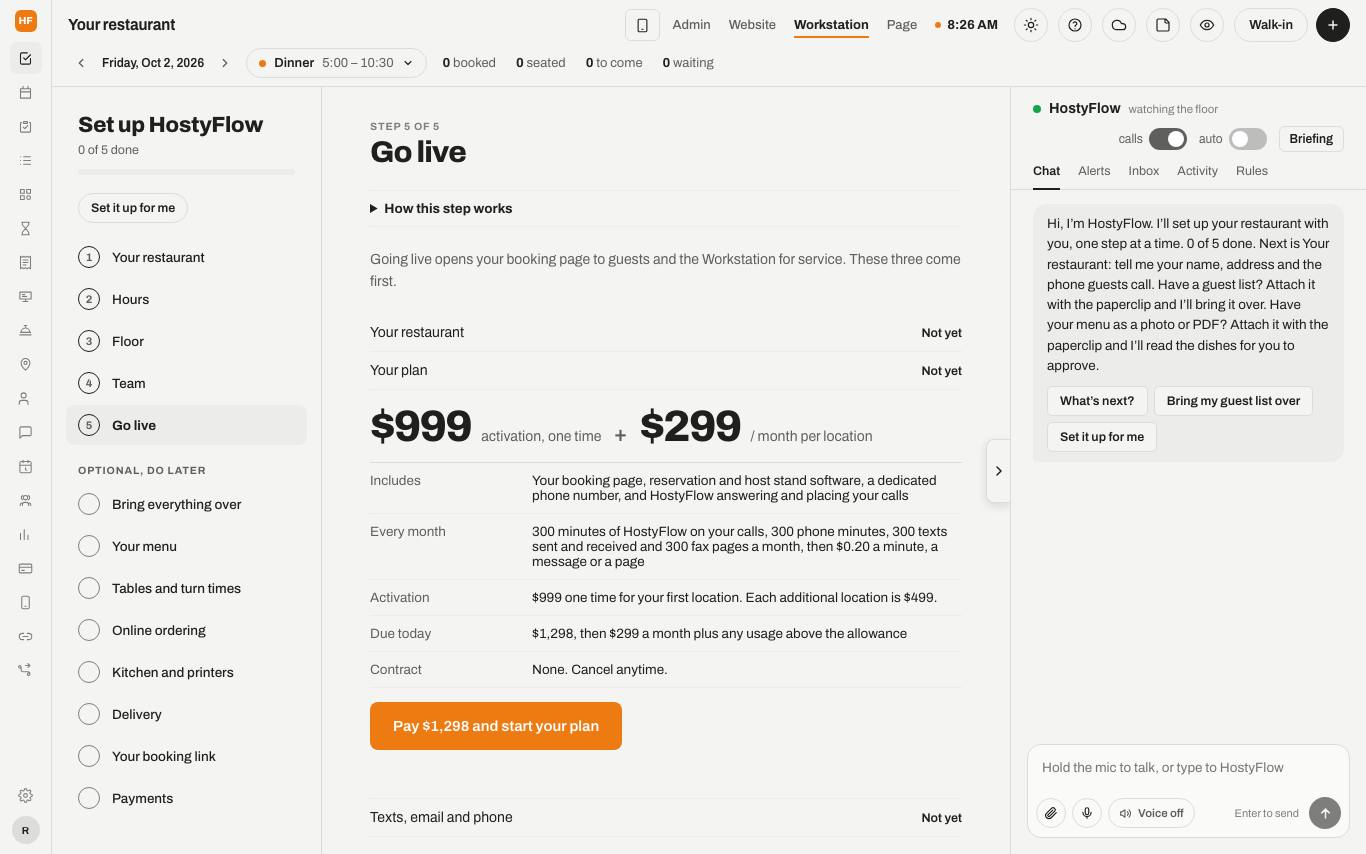
Start your plan, set up texts, practice with your team, approve Ready for service and go live.
Step by step
- Start Your plan and set up Texts, email and phone. Each opens right under its row.
- Press Start practice service to try a practice evening with your team. Practice guests are never texted. Press Clear practice when you're done.
- Read Ready for service and press Ready for service. HostyFlow keeps your name and the time.
- Press Go live. Guests can book and your team can start service.
Good to know
Go live needs Your restaurant, Your plan, and Texts, email and phone.
Ready for service keeps who approved it and when. Go live opens after it.
More in Getting Started
Your Setup Guide, Step by Step
Day one is five steps, from your restaurant's name to going live. The rest is optional and can wait until later.
Signing In with an Email Code
You sign in to HostyFlow with a 6-digit code sent to your email. There is no password to remember.
Who's Working and Shifts
One signed-in device can serve your whole team. Each person taps their name, enters the code HostyFlow sends them, and sees the tools their role allows.
Adding Your Team and Choosing What Staff Can Do
Add each person on Team, give them Staff or Manager access, and choose in Settings which actions staff logins can take.
Importing Your Guest List
Upload the export from your old booking system as a CSV file. HostyFlow brings over guests, past visits, future bookings, notes and tags.
Setup: Your Restaurant
Check the details guests see on your booking page and in texts.
Setup: Hours
Turn on the services you run and set when each one opens and closes.
Setup: Floor
Start your floor from the layout closest to your dining room.
Setup: Team
Invite the people who work with you.
Setup: Tables and Turn Times
Tell HostyFlow how long parties stay so it seats people without double booking.
Setup: Bring Everything Over
Bring your menu, guests, bookings, team and tables over from the system you are leaving.
Setup: Your Menu
Add your menu from a photo or PDF, or bring it over from your system.
Setup: Online Ordering
Take pickup orders from your booking page.
Setup: Kitchen Stations and Paper Tickets
Send each dish to the station that makes it, on a screen, on paper or both.
Setup: Delivery
Deliver with your own drivers, or with Uber and DoorDash drivers.
Setup: Your Booking Link
Copy your booking link and put it where guests find you.
Setup: Payments
Connect your bank so you can take deposits and no-show fees.
Practice Service Before Your First Night
Put a practice evening on your real floor so your team learns check-in, seating and the waitlist before guests arrive.
Ready for Service: Approve Before You Go Live
An owner or manager reads one page about tonight and approves it in one tap. Go live opens after it.
Your first shift at the host stand
What a host does on the first shift: check in parties, seat them and run the waitlist.
Your first shift on the floor
What a server does on the first shift: read the tables, drop the check and clear the table.
Your first shift on the kitchen screen
How the kitchen works the station screen on the first shift.
Your first delivery
How a driver picks up and hands over the first delivery.
Getting Help: Guides, the HostyFlow Chat and Email
Press the question mark in the top bar to search these guides, ask HostyFlow a question, or email HostyFlow support.
The Workflow Screen: One Reservation Start to Finish
Workflow shows each step a reservation goes through, who does it, the status it writes, and live counts for tonight.
Settings: Where Each Choice Lives
Settings holds your restaurant's choices in tabs, from hours and pacing to guest messages, the network, staff and billing.
Questions About Setup or Workstation Workflows?
Write to support@hostyflow.com with a question about setup, your floor plan or your account.